OpenClaw 2.0 Migration for Operators: Copy Paste Update Commands
2026-09-04

OpenClaw 2.0 and the follow-up 2026.8.x releases rebuilt onboarding, the browser app, and core update mechanics. Run openclaw update --dry-run first to preview changes, back up your ~/.openclaw config, then apply with openclaw update. Automatic installs stay off by default and require a managed Gateway, so most self-hosted setups still need a manual trigger.
***
> TL;DR:
>
> - Updating to OpenClaw 2.0 and newer patches requires careful planning due to significant system wide changes and the need for full backups of the entire configuration folder.
> - The migration impacts session handling, plugin support, and security controls, meaning plugins built on pre-2.0 APIs may need updates, and older setups must follow a detailed upgrade process.
> - Manual updates demand stopping the Gateway process beforehand and verifying the release integrity using --dry-run to prevent disruptions or compatibility issues.
> - Automatic updates only activate on managed Gateways and require enabling specific channels like stable or beta, with auto-update being off by default to avoid surprise restarts.
> - Verifying a successful update involves checking the version status, running openclaw doctor, and performing a basic smoke test, while rollback necessitates targeted reversion using --tag or source control.
***
Table of Contents
- What shipped in the latest OpenClaw releases
- How to update OpenClaw now
- Update channels and how auto-update actually behaves
- CLI reference for openclaw update
- Troubleshooting and repair when updates fail
- Verifying success and rolling back
- Where to find full release notes and changelogs
- Operational takeaways on upgrade timing
- A managed path through every OpenClaw update
- Sources
What shipped in the latest OpenClaw releases
If you've been away from OpenClaw for even a few weeks, the current release line will feel less like an update and more like a new install. The OpenClaw 2.0 announcement described it plainly: the team set out to rebuild first-run onboarding and the browser experience, then found that fixing those two layers dragged in a much wider cleanup across core systems. That's a familiar story in software engineering. Touch the entry point, and you end up touching everything downstream of it.
Here's what actually changed across the 2.0 line and the subsequent 2026.8.x patch releases:
- Onboarding and browser rebuild. First-run setup and the browser relay were rewritten, reducing the number of manual configuration steps for new installs.
- Memory and session handling. Persistent memory and session state were restructured, which is the main reason older installs need a real migration path instead of a simple file swap.
- Plugin and model support changes. The plugin SDK's import paths shifted, meaning custom plugins built against pre-2.0 APIs will need updates before they load cleanly.
- Security and runtime hardening. Independent coverage from InfoWorld noted tighter runtime isolation and secret handling, part of a broader industry push toward stricter sandboxing for agent platforms.
- OpenProse removal and OpenAI route migration. Two deprecated code paths were fully removed. If your setup still references either, the update will fail until you migrate off them.
The scope of 2.0 grew during development, according to the OpenClaw project itself, and that matters for planning purposes: this isn't a routine point release you can apply blind on a Friday afternoon. Treat it like a platform migration.
The most recent patch, v2026.8.2, focused on recovery and cleanup rather than new features. It fixed plugin integrity issues that surfaced after the 2.0 migration and shipped published release artifacts (including SHA-256 checksums) so you can verify what you're installing before you trust it in production.
Before touching anything, confirm you're looking at a genuine release. Three places to check:
- The GitHub releases page, where tags like
v2026.8.1andv2026.8.2list exact commit ranges and changed files. - The npm registry entry for the
openclawpackage, which mirrors the published version and lets you inspect the tarball directly. - The official docs release page, which explains migration steps in plain language rather than commit diffs.
Pre-update backups matter more here than in a typical patch cycle, precisely because the memory and session layer changed. A config file copy won't save you if a migration script partially rewrites your session store and then errors out. Copy the entire ~/.openclaw directory, not just the JSON config, before you start.
How to update OpenClaw now
The safe path is almost always the same regardless of whether you're on a laptop dev instance or a production Gateway: preview first, then apply.
- Check current status. Run
openclaw update statusto see your installed version, the channel you're subscribed to, and whether a newer build is available. - Preview the update. Run
openclaw update --dry-runto see exactly what the tool plans to do without touching your install. This step alone catches most surprises, including plugin conflicts that would otherwise fail mid-update. - Back up before applying. Copy
~/.openclawin full. As noted above, OpenClaw's built in config copy captures settings, not the complete runtime state, so don't treat it as a substitute for a real backup. - Apply the update. Run
openclaw update. According to the official updating documentation, this command detects your install type, runsopenclaw doctorautomatically, and coordinates a safe restart if you're running a managed Gateway. - Target a specific channel or version if needed. Use
openclaw update --channel betato move to a different track, oropenclaw update --tag v2026.8.2to pin an exact release rather than "latest stable." - Skip the restart if you need to finish other work first. Add
--no-restartto apply the update but defer the Gateway restart to a maintenance window you control. - Automate confirmation prompts in scripts. Add
--yeswhen running updates inside a CI job or scheduled task, so the process doesn't hang waiting for interactive input.
If you'd rather click than type, the Control UI supports the same flow: open Settings → Updates → Update Now. The confirmation screen shows the target version, a summary of breaking changes pulled from the release notes, and an estimated restart time. It's the same underlying update engine, just with a visual layer on top.
Manual installs (package manager or source checkout) need one extra step the CLI handles automatically for managed Gateways: stop the Gateway process before swapping packages. For npm, pnpm, or bun installs, that typically looks like:
openclaw stop
npm install -g openclaw@2026.8.2
openclaw doctor
openclaw start
Always run --dry-run before a manual swap too. It won't stop the Gateway for you, but it will tell you which plugins are likely to break on the new version, which is worth knowing before you're mid-downtime.
Pro Tip: *Run openclaw update status --json before and after any update and diff the output. It's the fastest way to confirm plugin versions and Gateway runtime actually moved to where you expected, rather than trusting a clean exit code.*
Update channels and how auto-update actually behaves
OpenClaw ships four update channels, and picking the wrong one is the single most common source of "why did my install change overnight" support questions.
- Stable is the default for most production installs. It includes a deterministic delay and jitter window so updates roll out gradually instead of hitting every install at once.
- Extended-stable is package-only and performs read-only checks, making it the conservative choice for environments where you want visibility into available updates without any risk of an unplanned change.
- Beta checks for new builds far more frequently, aimed at users who want early access to fixes and are comfortable troubleshooting the occasional regression.
- Dev follows a git checkout flow rather than packaged releases, tracking the repository directly for contributors and advanced testers.
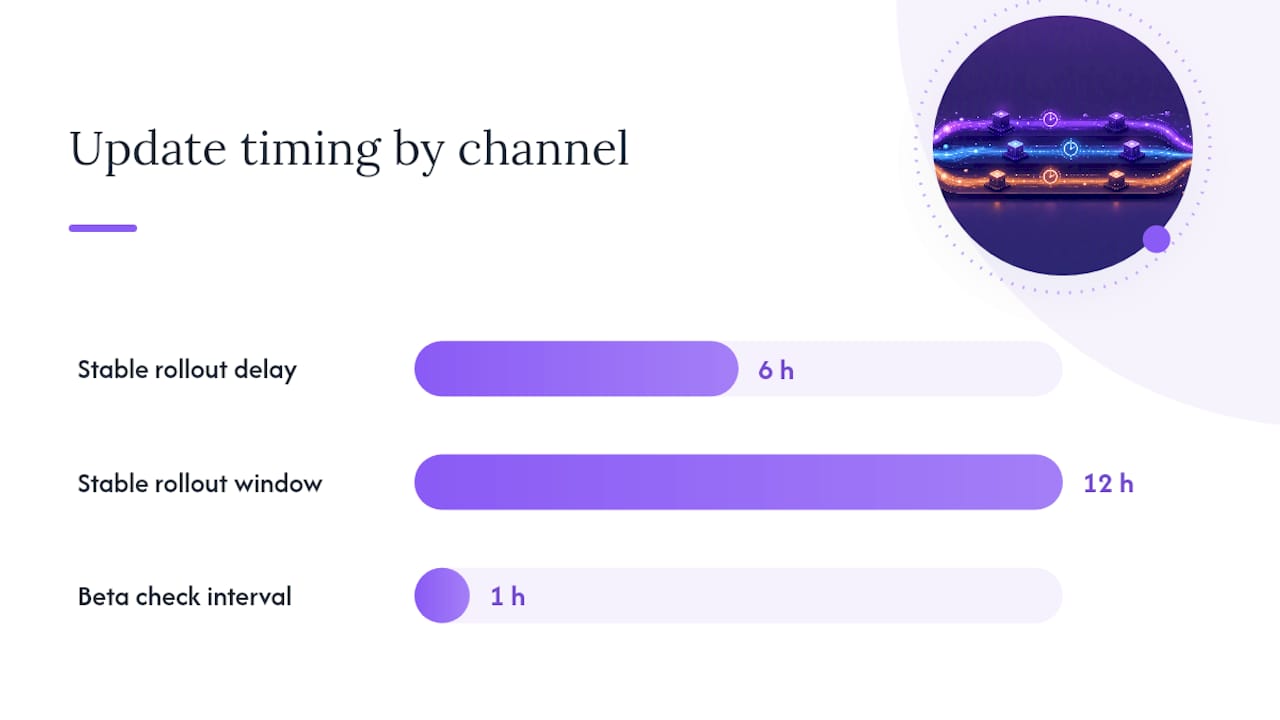
The rollout timing on the stable channel isn't arbitrary. According to the pull request that introduced native auto-updates, stable rollouts use a stableDelayHours setting (defaulting to 6 hours) plus a stableJitterHours window (defaulting to 12 hours), spreading the update campaign across a rolling window so that not every Gateway on the planet restarts in the same sixty seconds. Beta, by contrast, checks on a much tighter hourly interval, prioritizing speed over caution.
Automatic updates require more than just picking a channel, though. Auto-update needs a managed Gateway to work at all, and it's off by default (update.auto.enabled=false) even when one is available. The reasoning is straightforward: applying an update safely means coordinating a shutdown and restart sequence, and a foreground terminal-run Gateway simply can't do that on its own. If you're running OpenClaw in a terminal window rather than as a managed service, the updater will surface a hint that a new version exists, but it won't apply it for you.
If you want automatic updates disabled at the environment level regardless of any config file setting, set OPENCLAW_NO_AUTO_UPDATE as an environment variable. That override takes precedence over whatever is in openclaw.json, which makes it a handy safety net for shared or CI environments where a surprise restart would be disruptive.
To subscribe to a channel, either edit ~/.openclaw/openclaw.json directly or use the Control UI at /settings/updates. Channel choice also affects plugin convergence: switching channels can trigger a different install mode for plugins that maintain separate builds per channel, so expect a brief reconciliation period after any channel switch.
CLI reference for openclaw update
A handful of subcommands and flags cover almost every update scenario you'll run into. Keep this list nearby.
openclaw update— the main command; detects install type, runsopenclaw doctor, and applies the update.openclaw update status— shows current version, subscribed channel, and available updates. Add--jsonfor machine-readable output.openclaw update repair— resumes a partially completed update, handling post-core plugin convergence without a full restart.openclaw update cleanup— removes migration artifacts left behind after a successful update. Run with--dry-runfirst to see what would be deleted.--dry-run— previews planned actions on any update command without applying them.--channel— targets a specific channel (stable, extended-stable, beta, dev).--tag— pins an exact release tag instead of "latest" on the current channel.--no-restart— applies the update but defers the Gateway restart.--acknowledge-clawhub-risk— required when installing plugins or packages from ClawHub that haven't passed the standard capability review.
Use --tag when you need reproducibility, such as staging a specific version across a fleet of servers before a coordinated rollout. Use --channel when you just want to stay current on a given risk tolerance and let the update engine pick the right version for you.
Package installs and git checkouts behave differently under the hood. Package installs (npm, pnpm, bun) run through a verification guard that checks the package signature before applying it, which is part of why manual package swaps benefit from running openclaw doctor immediately afterward. Git checkouts skip that guard entirely since you're building from source, so the burden of verifying you're on a legitimate commit falls on you.
Troubleshooting and repair when updates fail
Most failed updates fall into one of three buckets: a plugin gets blocked during capability review, a plugin payload goes missing mid-download, or a breaking change collides with a customization you'd forgotten about. The recovery sequence is the same regardless of which one you hit.
- Check status first. Run
openclaw update status --jsonto see exactly where the process stopped and what state the core package is in. - Run the doctor with auto-fix.
openclaw doctor --fixcatches most configuration drift and missing dependencies automatically, and it's worth running even when you're not sure anything is wrong. - Resume with repair. If the core package already changed but plugins didn't finish converging,
openclaw update repairpicks up where the process left off without forcing a full restart, according to the OpenClaw CLI documentation. - Inspect plugin integrity directly. Check for runtime errors in individual plugin logs, particularly for any custom plugin built against the pre-2.0 SDK import paths.
- Clean up migration originals. Once you've confirmed the update completed and plugins are stable, run
openclaw update cleanup --dry-runto preview what will be removed, then run it without the flag to actually clear the old migration files.
Pro Tip: *Before restarting any heavy background job or scheduled workflow, confirm plugin convergence with a status check. A plugin that looks "installed" in the update log can still be mid-initialization, and kicking off a resource-intensive task at that moment is the fastest way to turn a clean update into a support ticket.*
If you're troubleshooting a security-related failure, particularly around secret handling or sandbox permissions, it's worth reviewing general guidance on model isolation and defensive testing practices, since the same isolation principles that apply to language model deployments generally extend to how agent runtimes handle credentials and plugin permissions.
Collecting Gateway logs before you start any repair sequence saves time later. If the repair doesn't resolve things on the first pass, those logs are what you'll need to file a useful bug report rather than a vague "it broke" comment.
Verifying success and rolling back
A clean exit code doesn't mean the update actually worked. Confirm it properly before trusting the new version with real workloads:
- Run
openclaw update statusand confirm the reported version matches the release you targeted. - Run
openclaw doctorto catch any lingering configuration or dependency issues. - Check that the Gateway runtime version and each plugin's
postUpdate.plugins.statusfield both report success. - Run a basic smoke test: send a simple request through your usual integration (Telegram, Discord, or the API directly) and confirm the response comes back as expected.
If something's wrong, rolling back is more deliberate than rolling forward. Run openclaw update --tag first to preview the rollback, then drop the flag to apply it. Use npm view openclaw versions to list every published version and pick a target you know was stable. For source checkouts, git checkout to the last known-good commit and rebuild from there. This is exactly why a verified backup before any major migration isn't optional. If a rollback still leaves data in an inconsistent state, that backup is what actually gets you back to a working install.
Where to find full release notes and changelogs
The GitHub releases page lists exact tags like v2026.8.1 and v2026.8.2 with full commit history and published SHA-256 checksums for verification. The npm registry mirrors published versions if you want to inspect a tarball directly, and the official docs release page explains migrations in plain language. For a quick manual install from a specific release: npm install -g openclaw@.
Operational takeaways on upgrade timing
Self-hosting OpenClaw gives you immediate control over patches, but it also makes you responsible for every migration, every rollback, and every 2 a.m. plugin failure. Managed hosting shifts that operational risk elsewhere, since upgrades get tested against a fleet before they reach any single instance. Either way, schedule major migrations like 2.0 during low-traffic windows, and always run openclaw doctor plus a smoke test before routing production traffic through the new version. Teams that would rather skip this cycle entirely have managed alternatives worth a look.
> *— Iosif Peterfi*
A managed path through every OpenClaw update
A managed hosting service offers an alternative to managing your own update cycle: instead of running openclaw doctor --fix at midnight after a migration issue, it provides tested upgrades, automated backups, and recovery handled on dedicated servers without requiring manual patching.
That matters most right after a release like 2.0, where breaking changes and plugin SDK shifts can turn a routine update into an afternoon of debugging. It suits teams and individual users who want a private, always-on AI agent connected to popular communication platforms, without owning the sysadmin work that comes with self-hosting.
If you're evaluating whether a managed instance fits your workflow, look through real OpenClaw use cases to see how teams are running it in practice, or check current plans and pricing to start a trial on a server that handles its own updates from day one.